
Need to access the Threshold Communications Ticketing System for the first time, or can’t remember your password? You can securely set or reset it in just a few steps:
Set Your Initial Password
If you are logging in for the first time and do not have a password yet:
- Go to the Threshold Ticketing System sign-in page.
- Select Forgot Password?
- Enter your username – this is your company email address.
- Enter the email address associated with your account.
- Follow the password-reset instructions sent to your inbox.
- Select the Reset Password link in the email.
- Create a new password that meets the displayed password guidelines.
- Select Done, then sign in with your company email address and new password.
Reset a Forgotten Password
The process is the same if you already have an account but need to reset your password:
- Go to the Threshold Ticketing System sign-in page and click Sign In.
- Select Forgot Password?
- Enter your company email address as both your username and the email address associated with the account.
- Check your inbox for the password-reset email.
- Open the email and select Reset Password.
- Create and confirm your new password.
- Select Done and sign in using your new password.
Visual Guide: Reset Your Password Step by Step
The screenshots below walk you through the password-reset process from start to finish. Use them alongside the steps above to confirm you are on the correct screen at each stage.
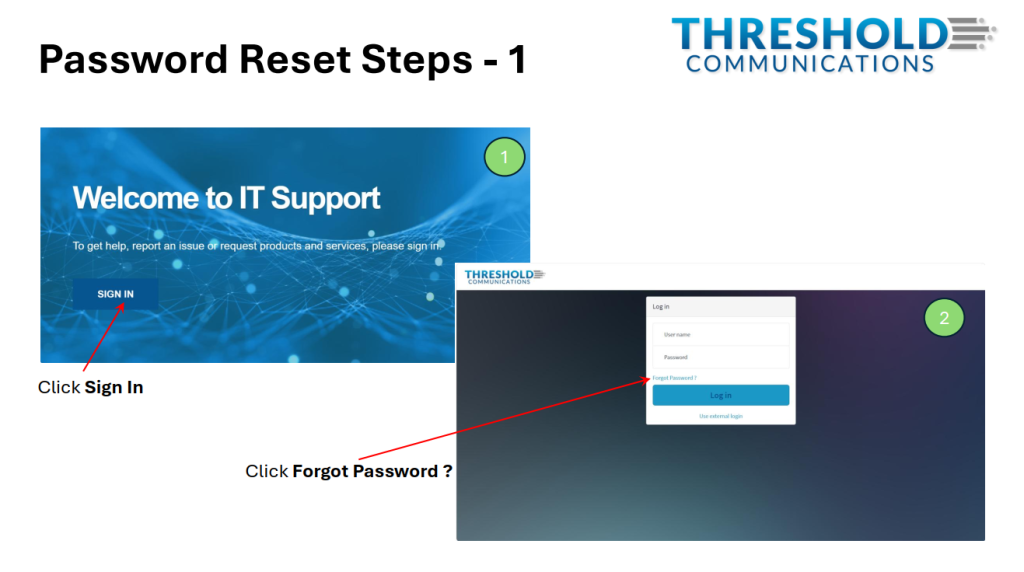
Start the Password Reset Process
Begin on the Threshold Ticketing System sign-in page. Click Sign In, then select Forgot Password? to begin resetting or setting your password.
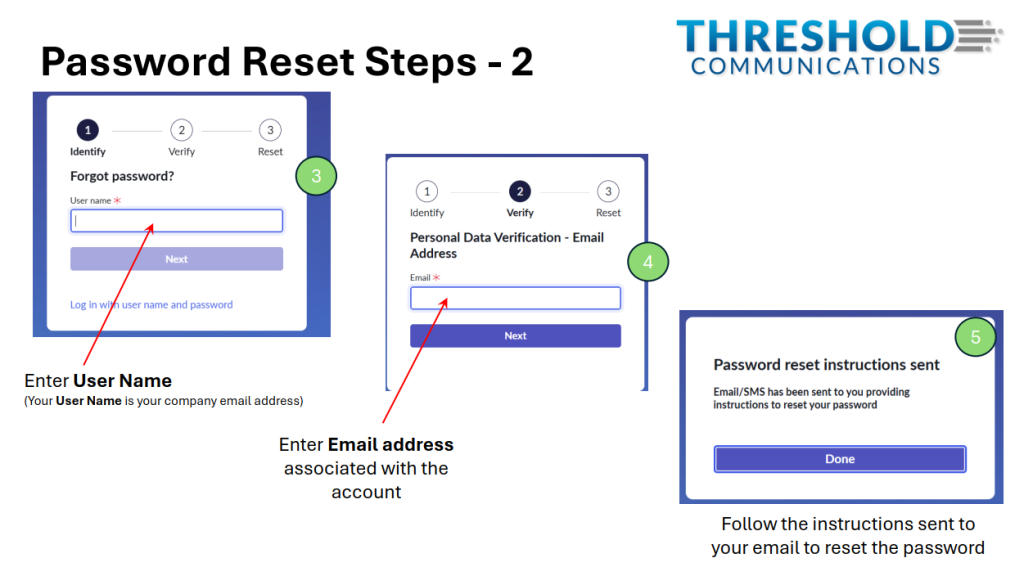
Verify Your Account Information
Enter your username, which is your company email address. Then enter the email address associated with your account. Once your information is verified, the system will send password-reset instructions to your inbox. Check your spam or junk folder if you do not see the reset email shortly after submitting the request.
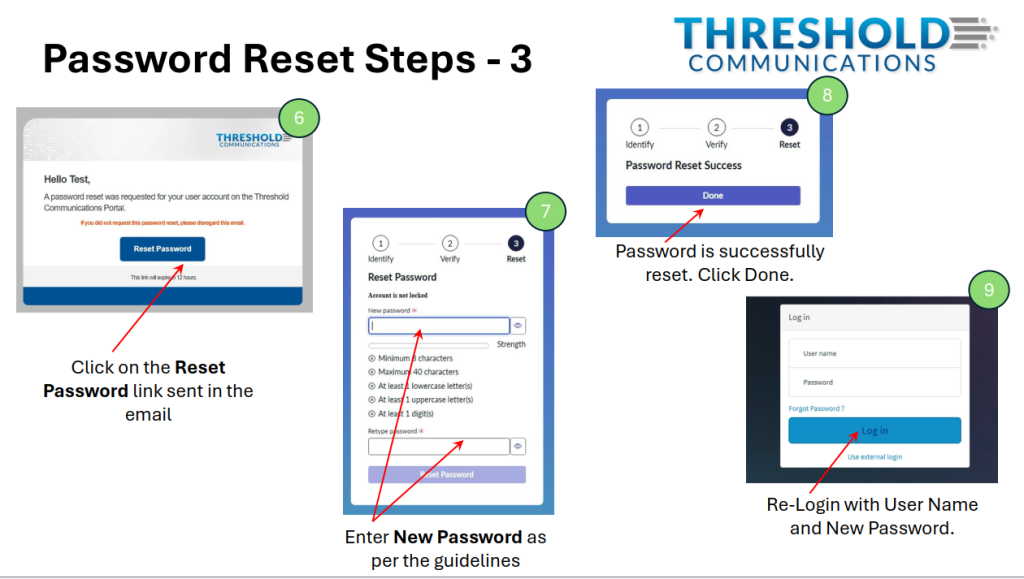
Create Your New Password and Sign In
Open the password-reset email and select Reset Password. Create a new password that meets the listed requirements, then select Done. Return to the sign-in page and log in with your company email address and new password.
If you do not receive the reset email or need additional assistance, please contact the Threshold Communications support team.
A Few Helpful Tips
- Your username is your company email address.
- Check your spam or junk folder if you do not see the reset email shortly after submitting the request.
- Use the password requirements shown on the reset page when choosing your new password.
- If you still cannot access your account, contact the Threshold Communications support team for assistance.
Keeping your Threshold ticketing system access up to date helps you submit and track support requests without delay.